A Simple Guestbook
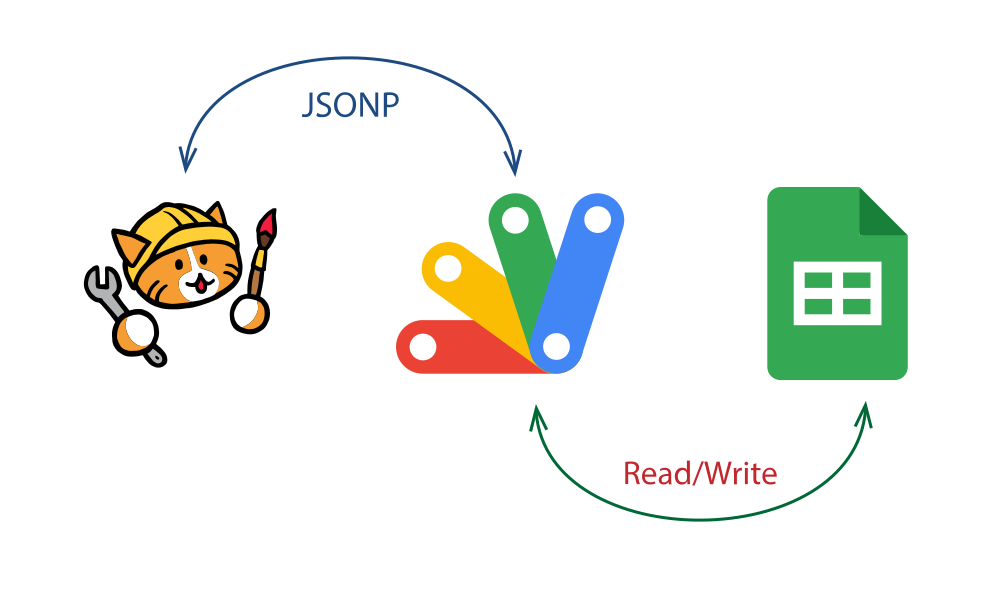
Neocities does not have a way to store data. To implement a Guestbook, I need to use a third party solution. I daily use Google Sheet, so, I thought I could create a backend JSON type webapp using App Script in Google Sheet and call it using JavaScript. This work like an API.
The advantage of this is, I already use Google Sheet, GMail etc., so, I do not need to signup for another third party solution. My visitors won't be interacting with Google Apps/Products directly and hence no tracking by Google. My Neocities site would call the JSON Webapp with a simple JavaScript code. No Embedding of Google Apps on my site
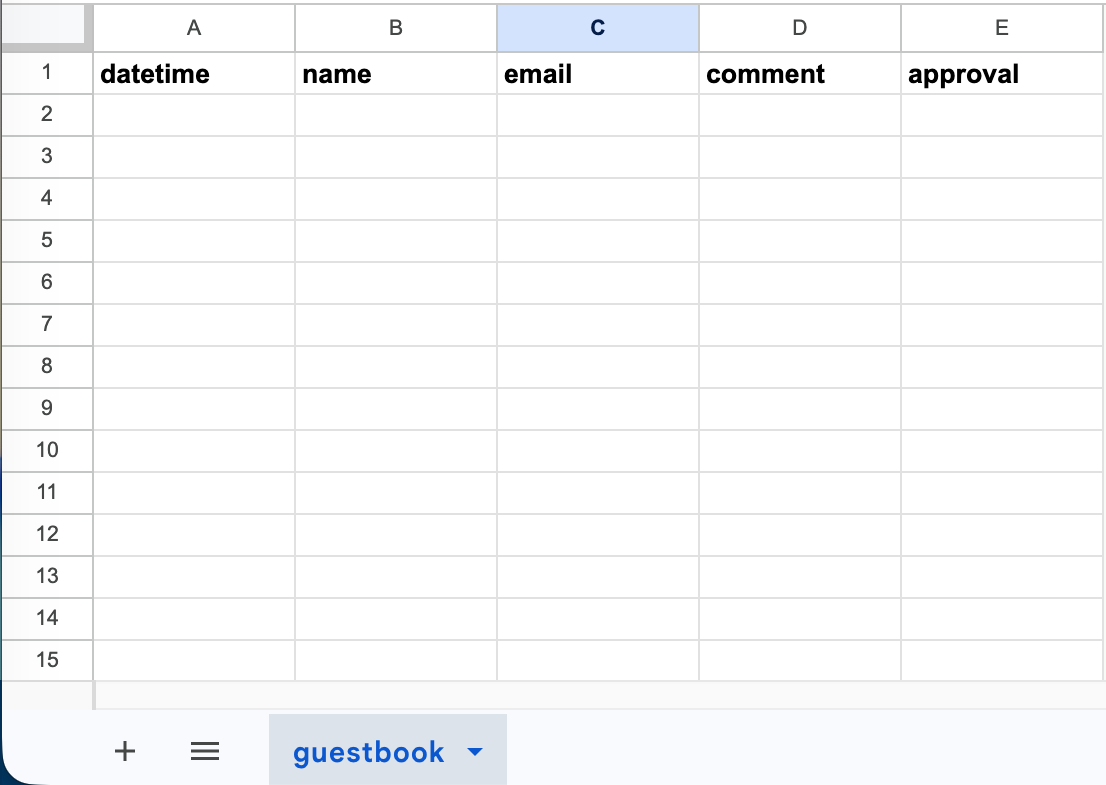
First Step: Create a new Google Sheet in Google Drive with just 5 columns. I named the columns as (datetime, name, email, comment, approval) as shown below. I also named the sheet as "guestbook" (This name is important for the next step).
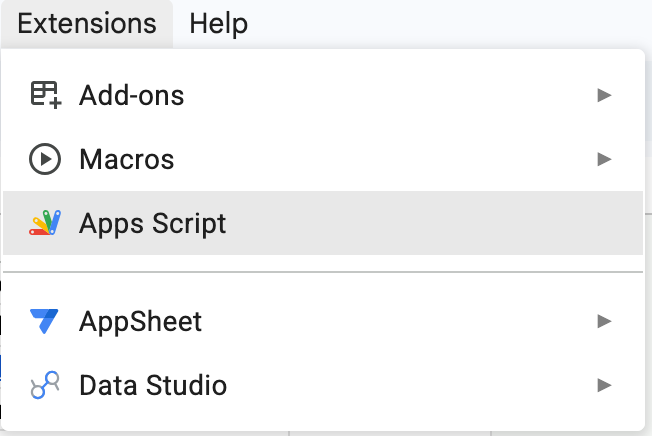
Second Step: Coding a webapp using Apps Script. Apps Script can be deployed as a Webapp. From top menu of your Google Sheet open Extensions>Apps Script (see screenshot below). A new Apps Script will open up. Rename it however you like. Click the Code.gs file and delete whatever is there. To deploy as a Webapp, I need a doGet() function in Code.gs file.
When a get request is sent to the script, this function would be invoked. Before I create a function, I need to connect my Apps Script to my Google Sheet document. It can be don by simply calling .getActiveSpreadsheet() function as follows:
// get Active Sheet
const ss = SpreadsheetApp.getActiveSpreadsheet()
const sheet = ss.getSheetByName("guestbook")
Here, I added two const. One to connect to my Spreadsheet, and then to my worksheet which I named as "guestbook" (change it to the name of your worksheet)
Now, in my doGet() function, I need to perform two task - read my Sheet data and write data to my Sheet. To read any stored data on my Google Sheet, I just need to call getDataRange().getValues(); function, and to store data I need to call appendRow() function. So, let start with a read function.
function readData(){
  // Read Data from guestbook worksheet
  let data = sheet.getDataRange().getValues();
  Logger.log(data);
}
Try to run this function. First save the file, then click Run (On first run, Google will prompt you to allow permission, select all and allow). You should see an Execution Log window with data as follows:
[[datetime, name, email, comment, approval]]If you get this output, your data reading is succesful. Try and fill with some random data and run again. You should see the data logged. Since the first row is a header row, so, I need to separate the header from the rest of the data. The data is an array so I can easily just split the data as follows:
function readData(){
  // Read Data from guestbook worksheet
  let data = sheet.getDataRange().getValues();
  let headers = data[0];
  let rows = data.slice(1);
  // Logging to check
  Logger.log("Header: " + headers);
  Logger.log("Rows: " + rows);
}
Here, data[0] is the first array, hence, would be the header row. The rest of the data I use slice() function to take data from row 2 below. You can run the script again, and see the Execution Log should display headers and rows separately. Now, I need to map the rows data into structured objects using the header titles. This can be done as follows:
function readData(){
  .
  .
  // Map rows into structured objects
  let allComments = rows.map(function(row) {
    let obj = {};
    headers.forEach(function(header, index) {
      obj[header.toString().trim()] = row[index];
    });
    return obj;
  });

  Logger.log(allComments)
}
If you click Run this time you should see a structured array like [{name=A Name, email=example@test.com, comment=A long comment, ... }]. So, to complete this function, I would then just return allComments variable.The complete function looks like this.
function readData(){
  // Read Data from guestbook worksheet
  let data = sheet.getDataRange().getValues();
  let headers = data[0];
  let rows = data.slice(1);

  // Map rows into structured objects
  let allComments = rows.map(function(row) {
    let obj = {};
    headers.forEach(function(header, index) {
      obj[header.toString().trim()] = row[index];
    });
    return obj;
  });

  return allComments;
}
Now, I can then add another function called saveData() to save any comments to my Sheet. Saving data is as simple as calling appendRow(). Before running the function, a test data is needed to check if the function could store data if called (Later the data could be obtained from neocities form). The function can be written as follows:
function saveData(){
  let datetime = new Date();
  let name = "John Doe";
  let email = "mail@test.com";
  let comment = "This is a new comment";
  let approval = "Pending";
  try{
    sheet.appendRow([datetime, name, email, comment, approval]);
    Logger.log ({ status: "success", message: "Thank you! Your entry is pending approval." });
  }catch(err){
    Logger.log ({ status: "error", message: "There's an error saving your entry" });
  }
}
Save your Code.gs file and run the new saveData() function from the menu (You may need to allow permission again for writting data). Check if the new data is added to your Spreadsheet? If yes, then the function works as intended. Now, I will then change the function to accept data from outside and return a response. The changes is as follows:
function saveData(data){
  let datetime = new Date();
  let name = data.name;
  let email = data.email || "";
  let comment = data.comment;
  let approval = "Pending";
  try{
    sheet.appendRow([datetime, name, email, comment, approval]);
    return ({ status: "success", message: "Thank you! Your entry is pending approval." });
  }catch(err){
    return ({ status: "error", message: "There's an error saving your entry" });
  }
}
This function accept data as a parameter that has the required name, email, and comment. Then, it would return a response either success or error. So, far both functions are working as intended. Now, a final function doGet() is needed to convert the Apps Script to a Webapp. doGet() also accept a parameter e that can contain data from sources sending data via GET method (like Neocities form). Using this parameter, I can either decide if a user is trying to add data or retrieve data. The function is as follows:
function doGet(e){
  let callback = e.parameter.callback;
  let responseData;

  //If data write is requested and both name and comment is present
  if (e.parameter.name && e.parameter.comment){
    let data = e.parameter;
    //save data to Sheet
    responseData = saveData(data);
  }else{
    //Read the guestbook
    responseData = readData();
  }

  if (callback) {
    var output = callback + "(" + JSON.stringify(responseData) + ");";
    return ContentService.createTextOutput(output).setMimeType(ContentService.MimeType.JAVASCRIPT);
  } else {
    return ContentService.createTextOutput(JSON.stringify(responseData)).setMimeType(ContentService.MimeType.JSON);
  }
}
This doGet() function would send the data as a JSONP if parameter callback is there. If callback is not there, the function would just output a JSON data. The reason why I need this callback is because Neocities has a strict Content Security Policy, hence I can't just sent a simple JSON text. Now, my Code.gs file has three functions readData(), saveData() and doGet(). The final part on Google Sheet end is to deploy the Apps script as a Web app. On the top right of the Apps Script window, you would see a Deploy button, click on that and then select New Deployment. A dialog will open up, click on Select Type gear icon and select Web app. Enter a description, then in the Execute as box, select Me, then the Who has access box, select Anyone, then click Deploy. You would see a Webapp URL, copy that and open a new tab on your browser, paste the url and visit the webapp. You should see a JSON text data there. If you have successfully done all this, then the next step is to use a page in Neocities to send and retrive data.
Third and Final Step: Creat a new page on Neocities say guestbook.html, add a form with input for name, email, comment and a submit button. Also add a form status placeholder and a comment container div. My setup look as below:
<div class="comment-form">
    <form id="guestbookForm">
        <fieldset>
            <legend>Sign My Guestbook</legend>
            <label for="name">Name:</label>
            <input type="text" id="name" required placeholder="Your name or alias">
            <label for="email">Email (Optional):</label>
            <input type="email" id="email" placeholder="your@email.com">
            <label for="comment">Comment:</label>
            <textarea id="comment" rows="4" required placeholder="Leave a message!"></textarea>
            <button type="submit" class="btn-grad" id="submitBtn">Sign Guestbook</button>
            <p id="formStatus"></p>
        </fieldset>
    </form>
</div>
<div id="commentsContainer">Loading Guestbook...</div>
The important part of the setup is the id part. Those are needed to interact with JavaScript. At the end of the document add <script>...</script> tags to place JavaScript content. Change the GOOGLE_SCRIPT_URL=YOUR_APPSCRIPT_URL with your actual one. My full script given below, it was done this way as Neocities has strict policy for sending/fetcing data by JSON method. Here it was done using JSONP way.
// Using Google App Script for guestbook
const GOOGLE_SCRIPT_URL = "YOUR_GOOGLE WEB_APP_SCRIPT_URL_HERE";
// READ FUNCTION: Handles displaying data on page load
function displayComments(comments) {
const container = document.getElementById('commentsContainer');
if (!comments || comments.length === 0) {
container.innerHTML = "<p>No guest has signed yet. Be the first to sign!</p>";
return;
}
container.innerHTML = "What Visitors Said...";
comments.reverse().forEach(item => {
const card = document.createElement('div');
card.className = 'comment-card';
card.innerHTML = `
<div class="comment-meta">${escapeHTML(item.name)}</div>
<div class="comment-text">${escapeHTML(item.comment)}</div>
`;
container.appendChild(card);
});
}
// Automatically load existing comments on page load
const loadScript = document.createElement('script');
loadScript.src = `${GOOGLE_SCRIPT_URL}?callback=displayComments`;
document.body.appendChild(loadScript);
// Handle Submission Response
function handleSubmissionResponse(response) {
const statusText = document.getElementById('formStatus');
const submitBtn = document.getElementById('submitBtn');
if (response.status === "success") {
statusText.style.color = "green";
statusText.innerText = response.message;
document.getElementById('guestbookForm').reset();
} else {
statusText.style.color = "red";
statusText.innerText = response.message;
}
submitBtn.disabled = false;
// Clean up
const tempScript = document.getElementById('tempSubmitScript');
if (tempScript) tempScript.remove();
}
// Save Guestbook signature
document.getElementById('guestbookForm').addEventListener('submit', function(e) {
e.preventDefault();
const submitBtn = document.getElementById('submitBtn');
const statusText = document.getElementById('formStatus');
submitBtn.disabled = true;
statusText.style.display = "block";
statusText.innerText = "Saving your entry...";
const name = encodeURIComponent(document.getElementById('name').value);
const email = encodeURIComponent(document.getElementById('email').value);
const comment = encodeURIComponent(document.getElementById('comment').value);
const submissionUrl = `${GOOGLE_SCRIPT_URL}?name=${name}&email=${email}&comment=${comment}&callback=handleSubmissionResponse`;
const submitScript = document.createElement('script');
submitScript.id = 'tempSubmitScript';
submitScript.src = submissionUrl;
document.body.appendChild(submitScript);
});
// Helper to prevent script injection (XSS)
function escapeHTML(str) {
if (!str) return '';
return str.toString().replace(/[&<>'"]/g,
tag => ({ '&': '&', '<': '<', '>': '>', "'": ''', '"': '"' }[tag] || tag)
);
}
Hope, you could follow everything and get your guestbook working. Leave a comment below.
Since you're here, please sign my guestbook